Lately I have been seeing high CPU (90-100%) usage on servers where the Windows Server Updates Services (WSUS) is installed.
This is mainly caused by updates that is superseded, and is filling the database causing the CPU to spike.
Just finished troubleshooting an error with Windows 10 clients (build 1607 and above) contacting WSUS server getting 0x8024500c like below while searching updates.
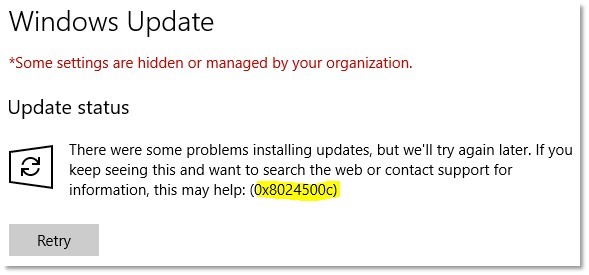
The client had an on-premise WSUS server which they wanted to push out Windows Updates, instead of using the internet (windowsupdate.microsoft.com).
They had configured the following group policy to enable:
This caused the Windows Update on the clients to break, instead they should disabled the above and configured the following instead:
The above will allow users to download apps on the Windows Store, but still only allowing the users to use the on-premise WSUS server.
Unfortunately Microsoft introduced a new feature called “Dual Scan” (read more about it here) which allows the Windows clients to access both WSUS and the internet, which would potentially bypass the local WSUS.
To disable the dual scan, the client needs to have the following registry keys deleted.
If though you set the matching group policies to “Not Configured” or “Disable”, it will not delete the keys but only set them to zero (DWORD) in the registry.
For those clients that are running build 1607, you need to install kb4025334 which will add a local policy “Do not allow update deferral policies to cause scan against Windows Update” under “Computer Configuration\Administrative Templates\Windows Components\Windows Update“.
You can set this group policy on those 1607 clients by adding the following registry through group policy.
The WSUS server was also tuned a little, because all resources was used. This caused the clients to take a long time to talk and eventually timeout.
You can test the Windows Update by executing the following command in a elevated command prompt.
If you want to see what registry keys you have on your client, you can run the following in a command prompt with elevated rights.
Check the Windows Update log by running the following command in PowerShell.
Check the Component-Based Servicing log here.
That is my 2 cents, hope you can use it!
I’m back again with a new PowerShell script to create a TFS project without Power Tools (which isn’t supported on TFS 15+).
|
1 2 3 4 5 6 7 8 9 10 11 12 13 14 15 16 17 18 19 20 21 22 23 24 25 26 27 28 29 30 31 32 33 34 35 36 37 38 39 40 41 42 43 44 45 46 47 48 49 50 51 52 53 54 55 56 57 58 59 60 61 62 63 64 65 66 67 68 69 70 71 72 73 74 75 76 77 78 79 80 81 82 83 84 85 86 87 88 89 |
Function Create-PSCredential { [cmdletbinding()] Param ( [Parameter(Mandatory=$true, HelpMessage="Please provide a valid username, example 'Domain\Username'.")]$Username, [Parameter(Mandatory=$true, HelpMessage="Please provide a valid password, example 'MyPassw0rd!'.")]$Password ) #Convert the password to a secure string. $SecurePassword = $Password | ConvertTo-SecureString -AsPlainText -Force; #Convert $Username and $SecurePassword to a credential object. $Credential = New-Object -TypeName System.Management.Automation.PSCredential -ArgumentList $Username,$SecurePassword; #Return the credential object. Return $Credential; } Function Create-TFSProject { Param ( [Parameter(Mandatory=$true, HelpMessage="Specify a TFS URL, example: 'https://source.something.com/tfs'")]$URL, [Parameter(Mandatory=$true, HelpMessage="Specify a valid version control, example: 'TFS' or 'GIT'")][ValidateSet("TFS", "GIT")]$VersionControl, [Parameter(Mandatory=$true, HelpMessage="Specify a TFS Collection, example: 'Netcompany'")][ValidateSet("MyCollection1", "MyCollection2", "MyCollection3", "MyCollection4")]$Collection, [Parameter(Mandatory=$true, HelpMessage="Specify a TFS Project, example: 'NC12345'")]$Project, [Parameter(Mandatory=$true, HelpMessage="Specify a TFS Project Decription, example: 'This project is used for coding stuff'")]$Description, [Parameter(Mandatory=$true, HelpMessage="Specify a TFS Process Template, example: 'Scrum'")][ValidateSet("Agile", "Scrum", "CMMI")]$Template, [Parameter(Mandatory=$true, HelpMessage="Specify a TFS Administrator Credential")]$Credential ) #Set the correct template ID. Switch($Template) { "Agile" {$TemplateID = "adcc42ab-9882-485e-a3ed-7678f01f66bc"} "Scrum" {$TemplateID = "6b724908-ef14-45cf-84f8-768b5384da45"} "CMMI" {$TemplateID = "27450541-8e31-4150-9947-dc59f998fc01"} } #Set the correct VCS ID. Switch($VersionControl) { "TFS" {$VersionControlID = "Tfvc"} "GIT" {$VersionControlID = "Git"} } #Construct the URI for the JSON. $URI = ($URL + "/" + $Collection + "/" + "_apis/projects?api-version=2.0-preview"); #Trust all certificates. add-type @" using System.Net; using System.Security.Cryptography.X509Certificates; public class TrustAllCertsPolicy : ICertificatePolicy { public bool CheckValidationResult( ServicePoint srvPoint, X509Certificate certificate, WebRequest request, int certificateProblem) { return true; } } "@ [System.Net.ServicePointManager]::CertificatePolicy = New-Object TrustAllCertsPolicy #Construct the JSON. $Body = @{ name = "$Project" Description = "$Description" capabilities = @{ versioncontrol = @{ sourceControlType = "$VersionControlID" } processTemplate = @{ templateTypeId = "$TemplateID" } } } | ConvertTo-Json #Execute the invoke rest API. Invoke-RestMethod -Method Post -Credential ($Credential) -uri ($URI) -Body ($Body) -ContentType "application/json"; } #Credential to create the project with. $Username = "Domain\Username"; $Password = "MySecretPassword"; #Call the function. Create-TFSProject -VersionControl GIT -Collection MyCollection1 -Project "MyTestProject" -Description "Testing project creation on TFS" -Template Scrum -Credential (Create-PSCredential -Username $Username -Password $Password); |
Lately I found out that the following doesn’t always work, I had problem with returning all users in a group.
|
1 |
Get-ADGroupMember -Recursive |
So I have created a small PowerShell function that basically does the same thing. Use it free of charge!
|
1 2 3 4 5 6 7 8 9 10 11 12 13 14 15 16 17 18 19 20 21 22 23 24 25 26 27 28 29 30 31 32 33 |
Function Get-ADNestedGroups { [cmdletbinding()] Param ( [Parameter(Mandatory=$true, HelpMessage="Please provide a valid identity.")]$Identity ) #Get all groups/users of the root group. $Members = Get-ADGroupMember -Identity $Identity; #Foreach member in the group. Foreach($Member in $Members) { #If the member is a group. If($Member.ObjectClass -eq "group") { #Run the function again against the group. $Users += Get-ADNestedGroups -Identity $Member.distinguishedName; } Else { #Add the user to the object array. $Users += @($Member); } } #Return the users Return ,$Users; } $Users = Get-ADNestedGroups -Identity "Domain Users"; |
Looong time, no posts.
Just wrote a PowerShell function that can convert text documents into PDF format. You need Microsoft Office Word installed.
Use free of charge:
|
1 2 3 4 5 6 7 8 9 10 11 12 13 14 15 16 17 18 19 20 21 22 23 24 25 26 27 28 29 30 31 32 33 34 35 36 |
#Convert input (file) into a PDF document (requires Word installed). Function ConvertTo-PDFFile { Param ( [string]$Source, [string]$Destionation ) #Get the content of the file. $Source = Get-Content $Source -Encoding UTF8; #Required Word Variables. $ExportFormat = 17; $SaveOption = 0 #Create a hidden Word window. $WordObject = New-Object -ComObject word.application; $WordObject.Visible = $false; #Add a Word document. $DcoumentObject = $WordObject.Documents.Add(); #Put the text into the Word document. $WordSelection = $WordObject.Selection; $WordSelection.TypeText($Source); #Set the page orientation to landscape. $DcoumentObject.PageSetup.Orientation = 1; #Export the PDF file and close without saving a Word document. $DcoumentObject.ExportAsFixedFormat($Destionation,$ExportFormat); $DcoumentObject.close([ref]$SaveOption); $WordObject.Quit(); } ConvertTo-PDFFile -Source "C:\Path\To\My\File.txt" -Destionation "C:\Path\To\Exported\PDF\file.pdf"; |
Lately I had the issue that SolarWinds Orion was detecting an expiring certificate on one of our servers. I have replaced every certificate on the server and double checked (of thought!) that the old certificate was deleted. But it was still complaining about an expiring date on a certificate I couldn’t find. I checked the event logs and found the event 15021, which told me something was still wrong.
I found out that a certificate was on a binding with “netsh show http certssl” in a command prompt.
If you have spread the MySite and a web application into separated SharePoint Web Application and both of these is using AD FS for authentication. You maybe noticed that you are not able to load user profile thumbnails from the MySite. This is because a token is not issued from the MySite web application and Cross-Origin Resource Sharing (CORS) that is a security measure.
But luckily Microsoft have acknowledged this and have added a PowerShell command that allows to load pictures/resources from other SharePoint web applications on the same farm.
It’s possible to set the performance for a SharePoint search crawl with PowerShell. This becomes handy if you are on a developing environment where performance isn’t crucial.
There are 3 valid modes:
Use the following PowerShell commands in a SharePoint Management Shell.
Disk-based caching controls caching for binary large objects (BLOBs) such as image, sound, and video files, as well as code fragments. Disk-based caching is extremely fast and eliminates the need for database round trips. BLOBs are retrieved from the database once and stored on the Web client. Further requests are served from the cache and trimmed based on security.
Disk-based caching is disabled by default. To enable and customize the disk-based cache, you can run the following script.